History & diffs
Follow how a project changed, then inspect the exact files behind a commit.
Read the graph
Each row represents a commit; colored lanes connect its history. Labels identify branches and tags. WIP represents uncommitted work connected to the current HEAD, not a saved commit.
Select a commit to see its message, author, time, parents, statistics, and changed files. Click its SHA to copy the full commit ID. Use the graph column controls to adjust which details are visible.
Ctrl+F searches commit subjects and full message bodies. Matching rows stay highlighted while other history dims. Load older commits when you need to look further back.
Compare file changes
Select a changed file from a commit or the working tree. The diff replaces the graph until you close it with Esc or return with Alt+Left.
| View | Best for |
|---|---|
| Hunk | A compact view of changed sections |
| Inline | Additions and deletions with whole-file context in one pane |
| Split | Before and after side by side, with independent scrolling |
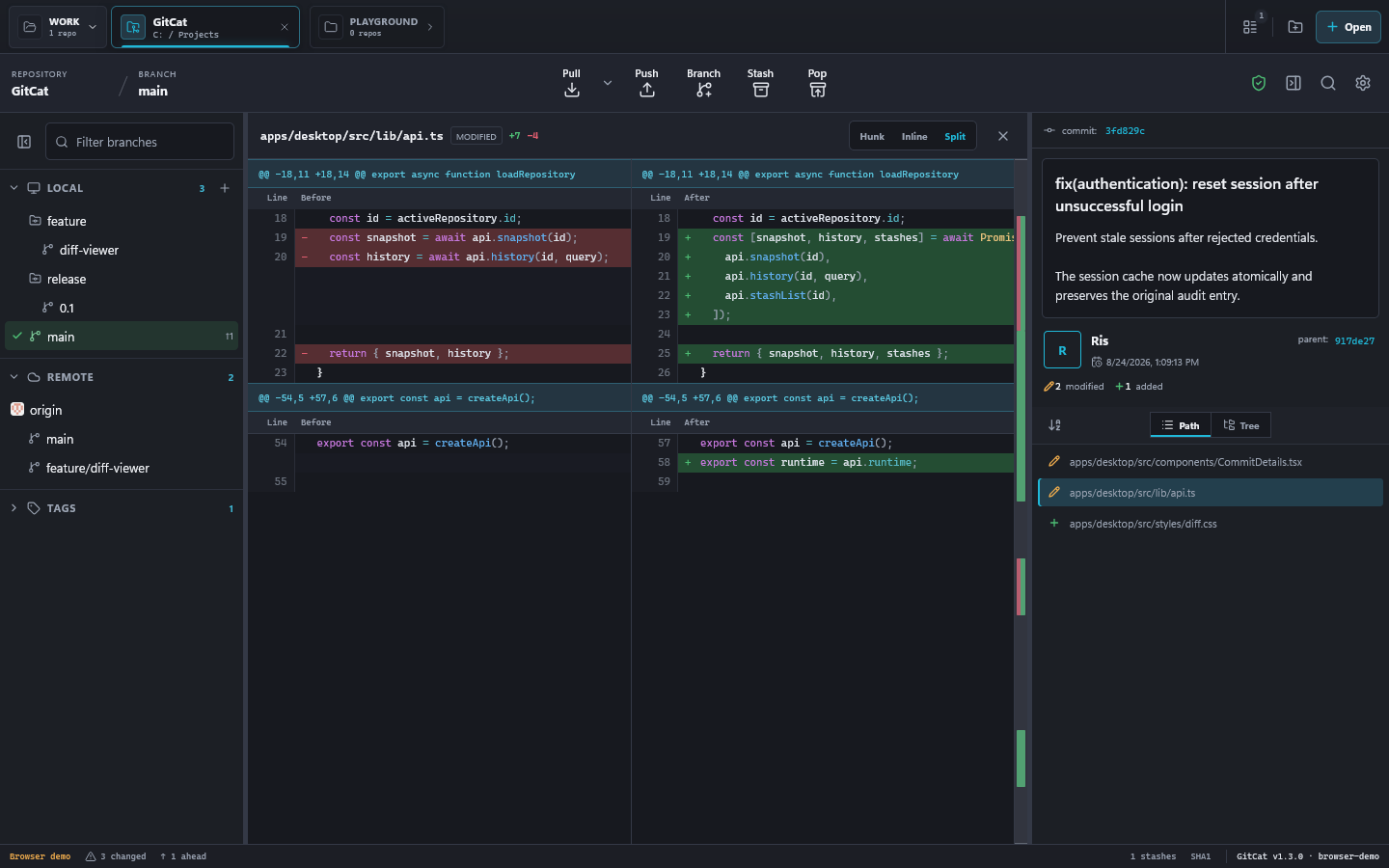
Use Alt+1 for inline or Alt+2 for split. Syntax highlighting helps distinguish code; the change map beside whole-file views jumps between modified areas. Diffs are line-based, not word-based. Binary or truncated files display their limitations explicitly.
Actions on old commits
The commit context menu includes branch/tag creation, checkout, cherry-pick, revert, reset, and message rewording.
- Cherry-pick applies a commit's changes onto your current branch.
- Revert adds a new commit that undoes a previous commit's changes.
- Reword changes a commit message and rewrites history.
- Checkout this commit enters detached HEAD. Create a branch if you want to keep new work there.
Soft reset keeps changes staged. Mixed reset keeps file edits but unstages them. Hard reset also discards affected working-tree changes. Review the target commit and protect any work you need before using it.