Resolve conflicts
A conflict means Git needs your decision before it can combine changes.
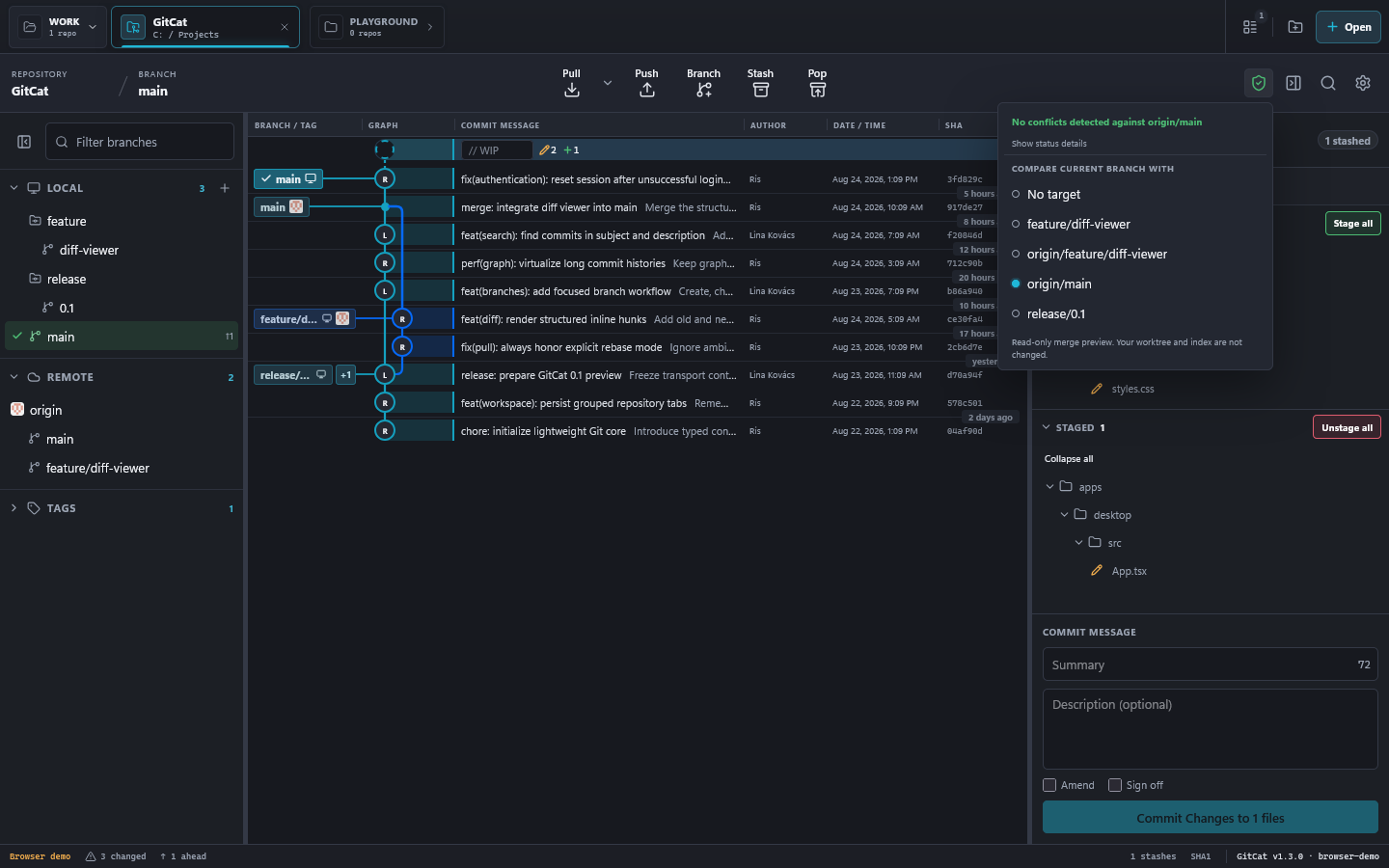
Check before merging
GitCat offers a conflict preflight that compares branches without changing the working tree or index. It helps you identify likely conflicts before starting a merge.
Resolve an active conflict
- Read the operation banner. It identifies the merge, rebase, cherry-pick, or revert in progress.
- Open a conflicted file from the working-tree panel.
- Compare Base, Ours, and Theirs, then edit the result to keep the intended content.
- Review the complete result, save it, and stage/mark the file resolved. If the correct result is deletion, use the editor's delete action.
- Repeat for the remaining files, then choose Continue in the operation banner.
The editor checks for external changes before saving. If it reports stale content, reload and review again instead of overwriting changes from another editor.
During a rebase, “ours” and “theirs” can feel reversed compared with an ordinary merge. Use the operation-aware labels and actual file content to decide. Do not choose a side solely because its name sounds like your work.
Resolve several files
Bulk actions can mark all conflicts resolved or take one side for all files or a folder. Use them only after checking that the same decision is correct for every affected file. Marking a file resolved does not prove its content is correct.
Continue, skip, or abort
Continue resumes after resolution. Skip, when available, omits the current step; its changes will not be applied. Abort cancels the operation. Check the banner before choosing, and save any separate edits you need to keep.
Default shortcuts: Ctrl+Alt+Enter to continue; Ctrl+Shift+Backspace to abort. Run your project's relevant checks after resolving code conflicts.