Your first repository
Start with a folder on your computer, a remote URL, or a new project.
Open an existing project
Choose Open on the start page, or press Ctrl+Shift+O. Select the repository folder. GitCat opens it in a tab and loads its branches, history, and working changes.
Use the searchable recent-repository list to return later. Removing a recent entry only removes that shortcut; it does not delete the repository.
Clone a remote repository
- Choose Clone.
- Enter the repository URL, or choose a repository from a connected GitHub account.
- Pick the destination and folder name. Adjust the branch option if needed.
- Start the clone, then open the resulting workspace.
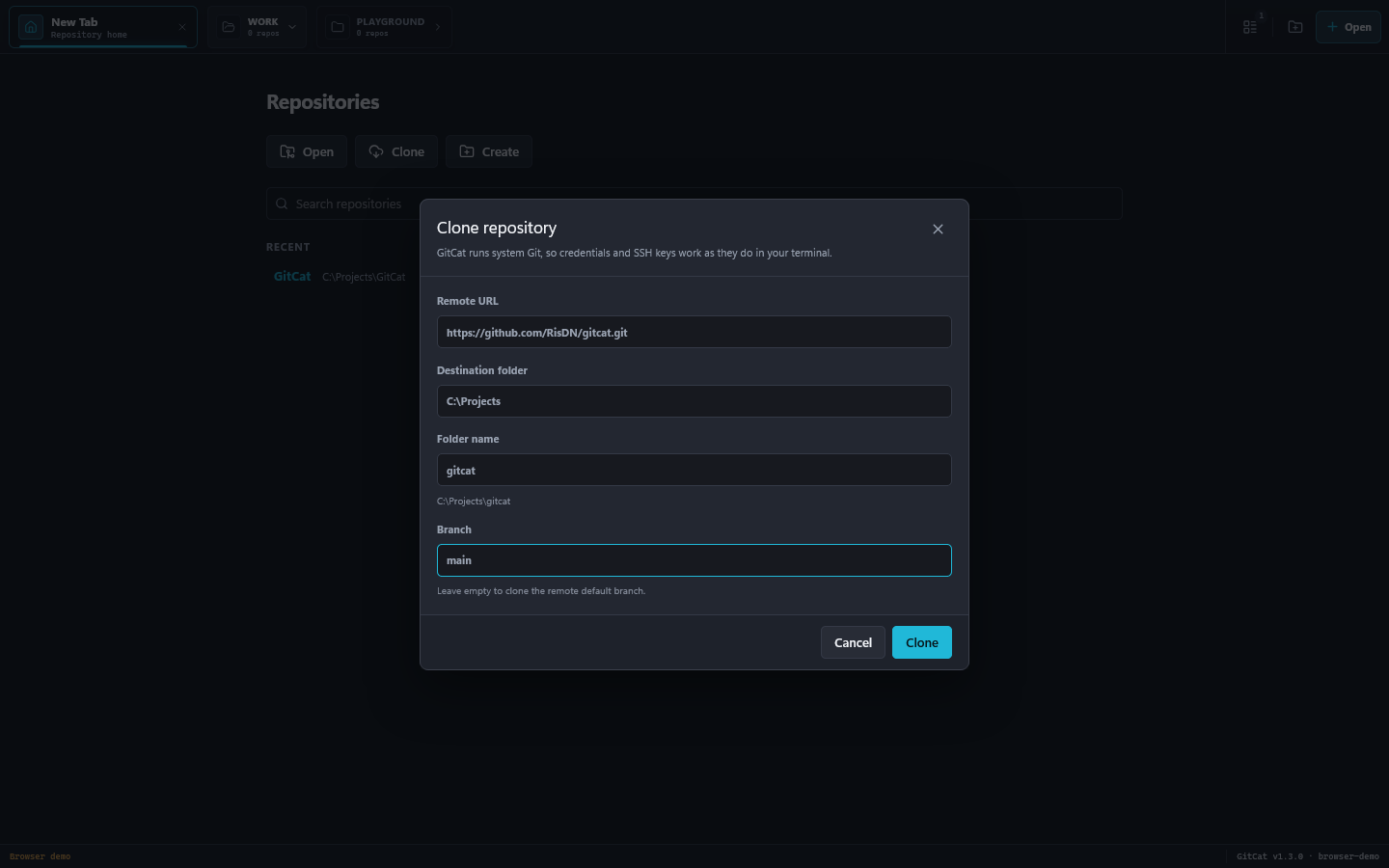
For a first try, use the public URL https://github.com/catninth/docs.git. Private repositories require credentials. See hosting integrations if sign-in is needed.
Create a repository
Choose Create, select Local Only, then enter a name and parent folder. Choose the initial branch (default: main) and an optional .gitignore template, then select Create Repository.
You can also create a remote repository on a connected GitHub service. Check its name and Private/Public visibility before creating it. Other listed providers marked Coming soon cannot create repositories from GitCat.
Keep projects organized
Drag tabs to reorder them. Use the tab context menu to rename a display alias or move a repository into a group. This changes your workspace organization, not the folder name on disk.
Ctrl+Tab cycles through repositories. Ctrl+W closes the active tab; Ctrl+Shift+T reopens the last closed tab. If a folder moves, the unavailable-repository page offers retry, locate, and close actions.