Quality & storage
Choose quality you can record smoothly and a replay length you can afford to keep buffered.
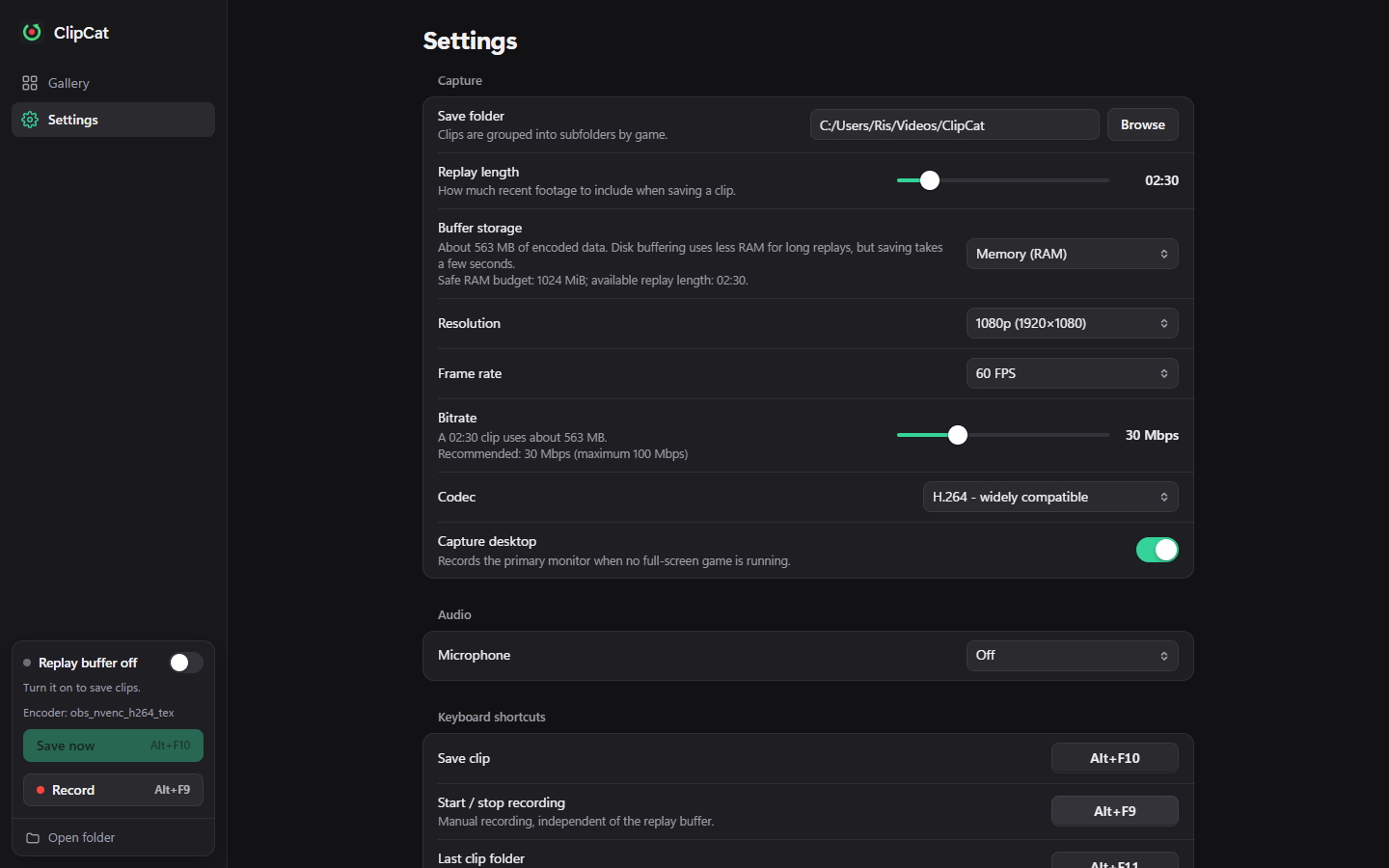
Browser preview with sample settings. Your memory budget depends on your computer.
Resolution, frame rate, and bitrate
Resolution controls image size: native monitor resolution, 1440p, 1080p, or 720p. Frame rate supports 30, 60, 120, or 144 FPS. Higher values need more encoding work and usually more data.
Bitrate controls how much video data is written each second. Increasing it can improve detail, but also increases clip size and buffer usage. Changing resolution, FPS, or codec updates the suggested bitrate; you can adjust it afterward.
For a first test, the defaults are 1080p, 60 FPS, H.264, 30 Mbps. If the game or capture stutters, lower resolution or FPS and retest a short recording. Check the sidebar for a CPU-encoding fallback, which can increase load.
H.264 or HEVC?
Choose H.264 for broad compatibility with players and sharing tools. HEVC can produce smaller files at similar quality, but needs compatible encoding and playback support. Test a saved file on the device or editor you intend to use.
Memory or disk buffering?
| Storage | Good fit | Tradeoff |
|---|---|---|
| Memory (RAM) | Shorter replays and quick saves | Uses RAM while buffering; available memory limits safe replay length |
| Disk | Longer replays with less RAM use | Writes continuously, needs space, and takes time to assemble a clip |
Replay length accepts 10 to 1,200 seconds (20 minutes), subject to the safe memory budget. Settings shows the available budget for memory mode. Disk mode requires ffmpeg and a writable Buffer folder.
The Save folder holds finished videos. The Buffer folder holds temporary rolling data. They serve different purposes.
Estimate space
Approximate video size in megabytes is bitrate in Mbps × seconds ÷ 8, plus audio and container overhead. For example, 30 Mbps for 150 seconds is about 563 MB of video. The UI shows estimates for your selected values.
Disk buffering continuously writes even when you never save a clip; read the write-volume estimate next to Buffer folder. ClipCat stops capture when disk space drops below its safety threshold of 1 GB. Keep additional space for completed clips.
Saving changes to the capture pipeline restarts it and clears unsaved replay content. Save the current moment first.