Your first clip
Set up capture once, then save a moment with Alt+F10.
Choose where and what to capture
- Open Settings and use Browse next to Save folder to choose where videos go.
- Set Replay length. The default is 2 minutes 30 seconds.
- Leave H.264, 1080p, and 60 FPS for an initial test, or choose lighter settings for your system.
- Review Capture desktop. On Windows it captures the primary monitor when no full-screen game is running. On Linux, screen capture is the available capture path.
- Leave Microphone off, or select Push-to-talk / Always on if you want your voice.
- Select Save when you have changed settings.
Before enabling replay or recording, close private windows and check your capture choice. Desktop capture is enabled in the default settings. The microphone is disabled by default.
Enable replay
Turn on the replay switch in the sidebar. A new installation starts with it off. Wait for Replay buffer running, then give the buffer time to fill. You can only save footage captured since it started, up to the configured length.
Save the moment
Press Alt+F10 or select Save now. Wait for the saved notification. Disk buffering may take a few seconds to assemble the video; avoid repeatedly triggering Save while one is in progress.
Find the result
Open Gallery to play the clip, or press Alt+F11 to open the latest clip's folder. Clips are grouped into subfolders by detected game, with unrecognized captures grouped as Other in the gallery.
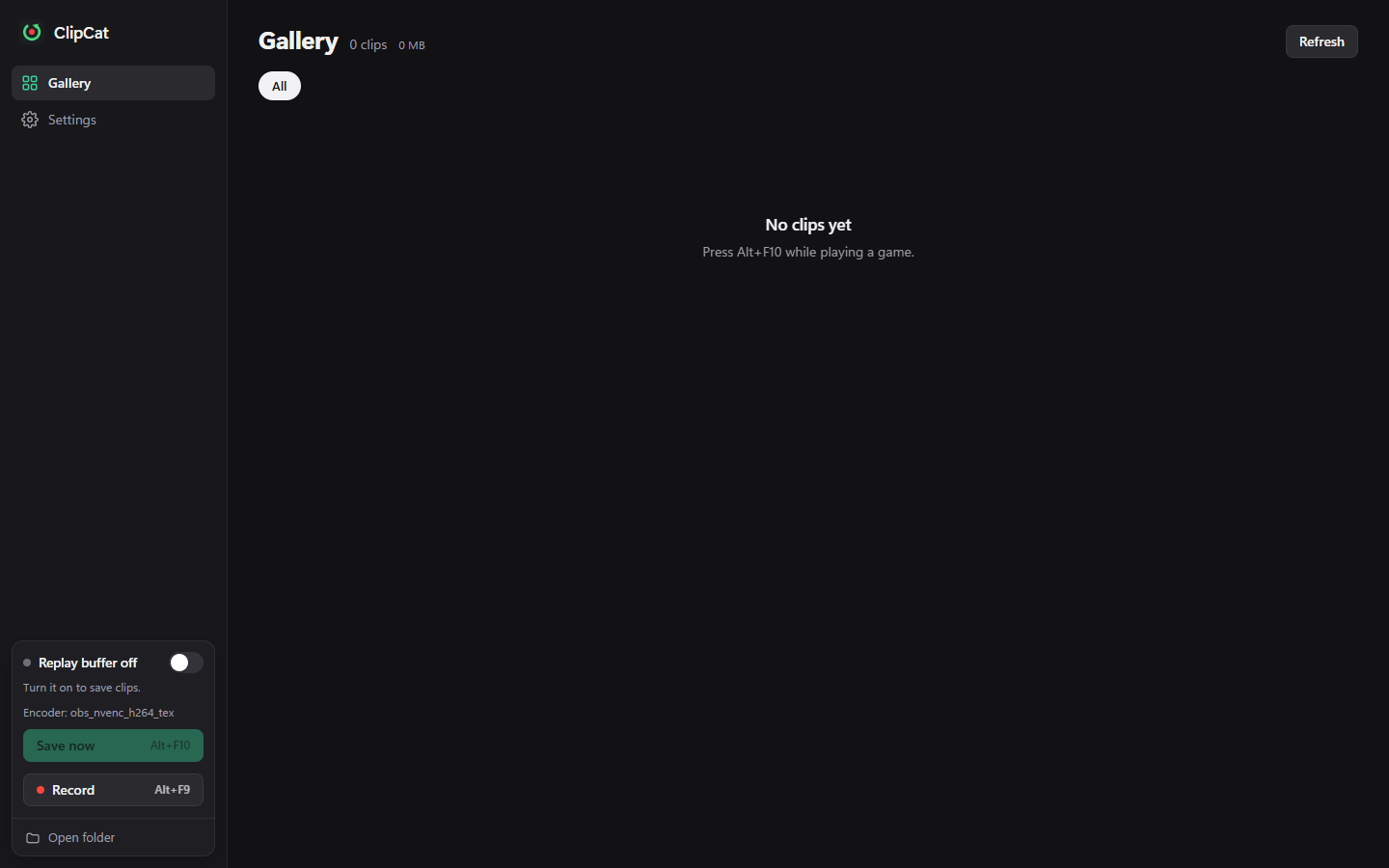
This browser preview shows the real empty-gallery interface. After a successful save in the desktop app, your video appears here.
Want to record a whole session? Use manual recording.